Open the plugin catalog
Sign in to AudioMuse-AI as an administrator, open Plugins → Manage Plugins, and select the Catalog tab.
Plugin for AudioMuse-AI
Per-User Sonic Fingerprint turns AudioMuse-AI's similarity analysis and each person's listening history into a separate playlist in their own Navidrome account.
AudioMuse-AI already understands how the songs in a library relate to one another. This plugin applies that analysis separately for every configured Navidrome listener, using their listening history to create or refresh a playlist that belongs to them.
It is included in the default community catalog.
Sign in to AudioMuse-AI as an administrator, open Plugins → Manage Plugins, and select the Catalog tab.
Find the plugin in the catalog and click Install. It ships through AudioMuse's default community repository, so there is no catalog URL to add manually.
Confirm AudioMuse's plugin warning, then use Apply now (restart) when prompted so the web and worker containers load the plugin.
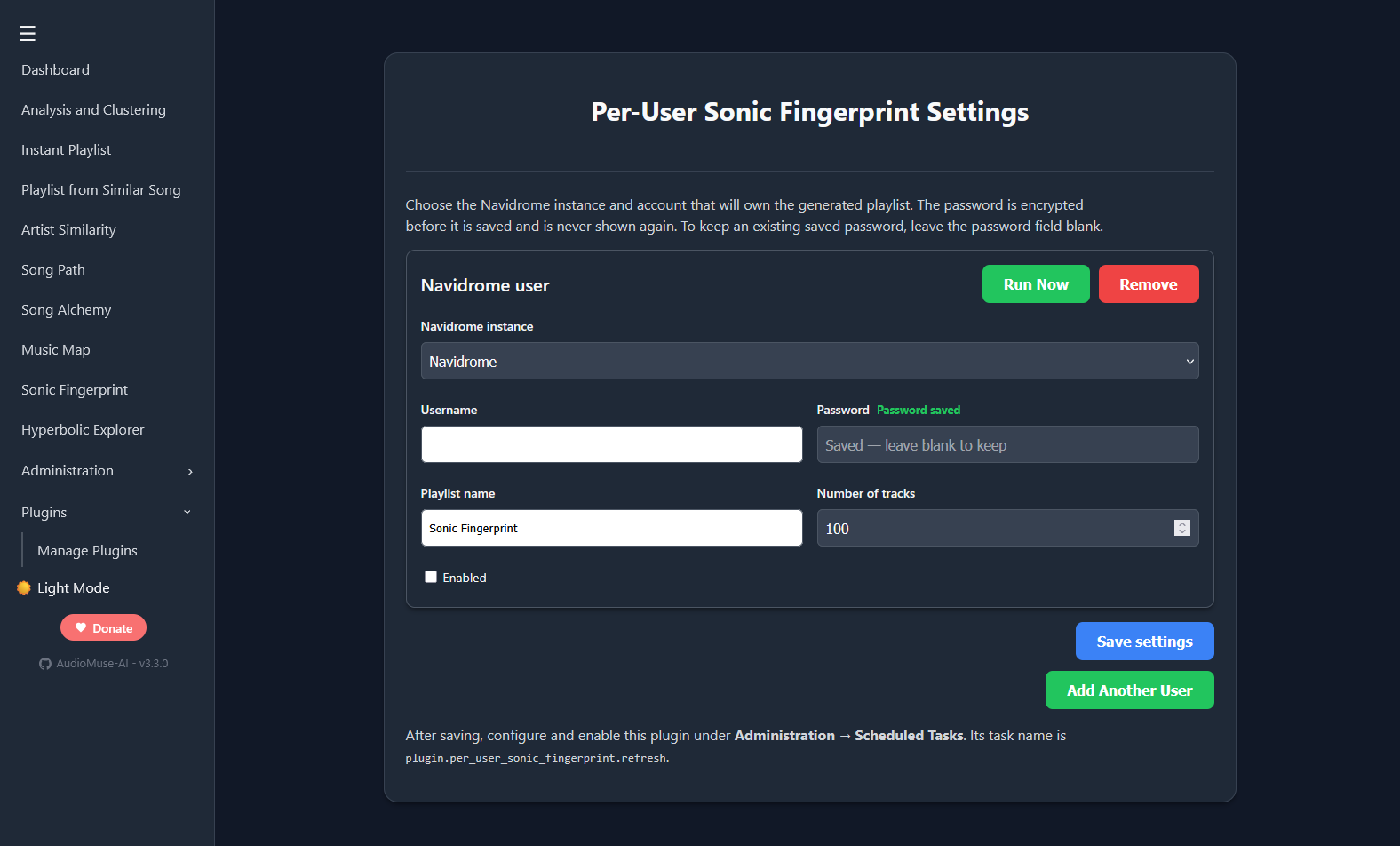
Open Installed → Per-User Sonic Fingerprint → Settings. Choose a Navidrome instance, enter the listener's credentials, set the playlist name and size, then save.
Use Run Now for an immediate refresh. For automatic updates, open Administration → Scheduled Tasks and enable plugin.per_user_sonic_fingerprint.refresh. The installed default is Sunday at 04:00 and starts disabled.
You need AudioMuse-AI 3.2.0 or newer, a completed analysis with its similarity index available, Navidrome users with listening history, and a persistent AudioMuse plugin directory.
cryptography package, so it works with AudioMuse's Docker or Kubernetes images when plugin dependency installation is enabled. AudioMuse standalone builds cannot install extra plugin packages and mark it incompatible.Saved Navidrome passwords are never stored or shown as plain text. The plugin encrypts them with AES-256-GCM using a separate random key in the persistent plugin directory. Back up that key together with the AudioMuse database.